



















← Support
Article 7 · Use
Keep Maya on screen
Goal
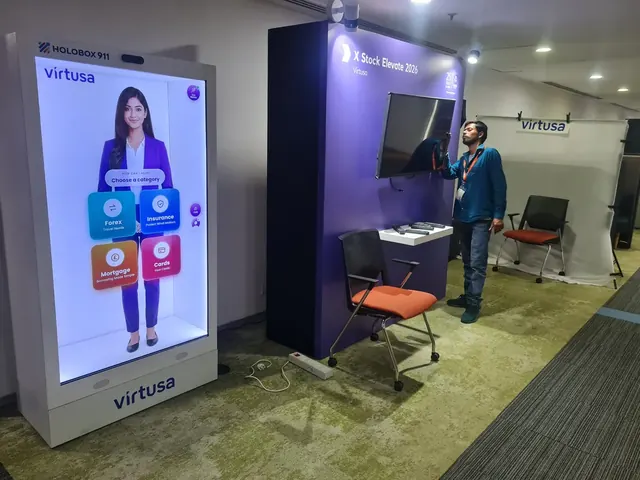
Maya is on screen whenever the box is on, without anyone touching it.
What the box does by itself, from HoloBox software 0.9.6
- About 90 seconds after switch-on, it opens Maya's page.
- If someone presses Home, Maya comes back after 3 minutes on the home screen, during opening hours.
- After the sound settings are applied at start-up, Chrome restarts once so Maya uses the right microphone.
Do
- Leave Chrome alone. Do not open other websites on the box.
- To show something else (a video, a sequence), use Studio › My HoloBox, not the box itself.
Do not
- Clear Chrome's data or sign out of Chrome. The box loses its Studio link (Article 5).
- Switch the box's "Bring Maya back" feature off unless HoloBox support asks.
- Use Studio › Maya › Switch her off for today unless you mean it: Maya stays off until someone presses Switch her on again. To stop her for a moment, use Studio › My HoloBox › Stop Maya.
If you see this
Still not fixed?
Press Call support on the box's screen, or see how to reach us. Tell us the article number and what you tried.
Last checked 23 Nov 2026. Written from support cases on HoloBox software 0.8.8 and 0.9.5.
Was this helpful?